

QR Code for Business Cards
Put a QR code on your business card and anyone who scans it with their phone camera gets a pre-filled "Add Contact" card with your name, title, phone, email, and company, saving you in one tap instead of typing the card by hand or losing it in a drawer.
How QR codes work for business card
The QR code on your card links to a hosted vCard contact page. When a prospect points their phone camera at it, the phone offers to save you as a new contact instantly, no app or typing needed. Because it's dynamic, you can change jobs, get a new number, or update your title later and the same printed card keeps working.
What your business card QR opens
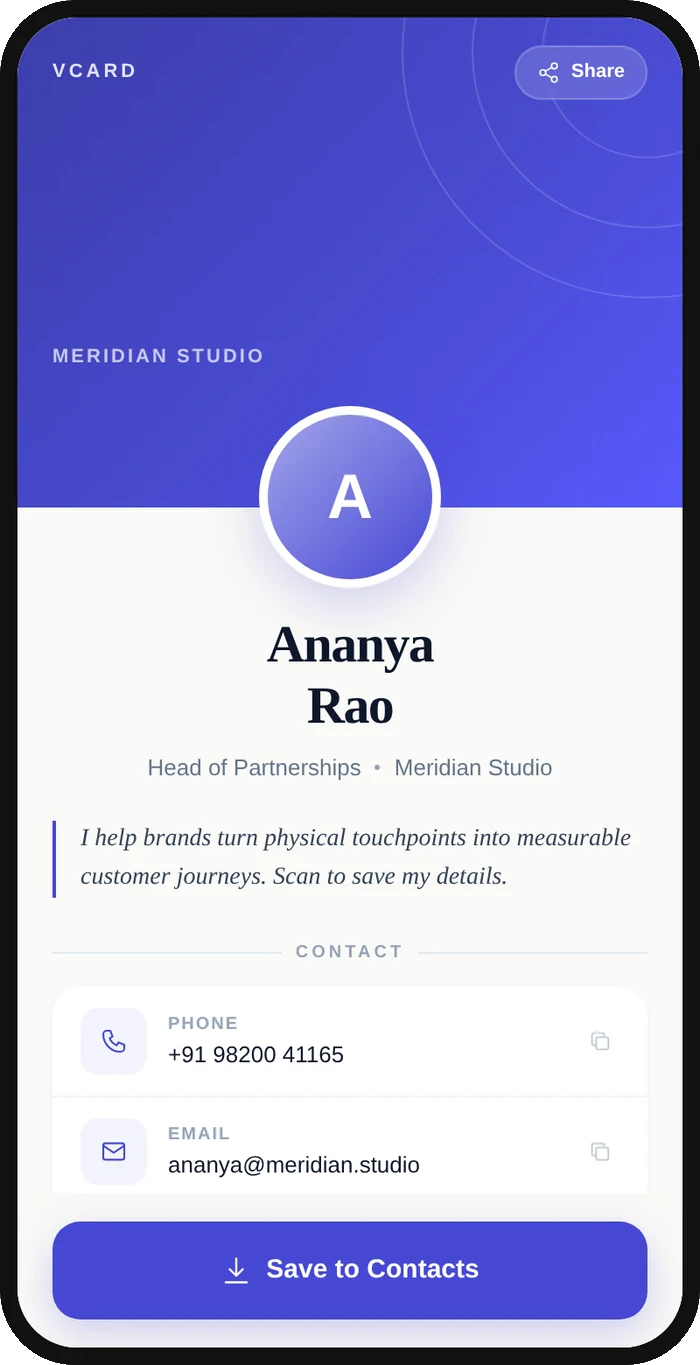
A real Qravio scan page, shown with demo content. Every part of it is editable after the code is printed.
Make your Business Card QR code
Build it free below, then create an account to make it dynamic — edit it anytime and track scans.
Set up your Business Card QR code
- 1Sign up free at qravio.app and choose the vCard QR type for contact saving
- 2Enter your card details: name, job title, company, phone, email, website, and address
- 3Customize the QR with your brand color and add a logo so it matches your card design
- 4Download a high-resolution PNG or vector SVG sized to fit cleanly on your card layout
- 5Place it on the back of your card, send the file to your printer, and test a scan before the full print run
Why use a Qravio QR code for business card
Saved in one tap, never re-keyed
Prospects get a pre-filled Add Contact card with your phone, email, title, and company. No squinting at tiny print, no typos, and your details land in their phone before they leave the conversation.
Reprint-proof when your details change
Change roles, get a new mobile number, or rebrand and just update the contact page in Qravio. Every card already in wallets and rolodexes points to the new details, so a box of old cards never goes to waste.
Know which cards actually convert
See real-time scans by date, location, and device, so you can tell which events, meetings, or booths your handed-out cards turned into saved contacts and follow-ups.
Free, clean, and unbranded
Generate a watermark-free QR on Qravio's free dynamic tier, no Qravio logo stamped over your card and no forced expiry, so the code scans reliably long after print day.
Pro tip
Put the QR on the back of the card with a short prompt like "Scan to save my contact" so people know what it's for, and always test-scan a physical printed proof, not just the screen, before approving the print run.
Business Card QR code FAQ
What does the QR code on my business card actually do when scanned?
It opens an Add Contact card pre-filled with your name, title, phone, email, company, and website. The person just taps Save and you're in their phone, no manual typing and no third-party app needed on modern iPhone or Android cameras.
Do I have to reprint my cards if my phone number or title changes?
No. With Qravio's dynamic vCard, you edit your contact details in the dashboard and every card you've already handed out instantly serves the updated info. The printed QR code itself never changes.
Can I tell how many people scanned the QR code on my card?
Yes. Qravio tracks every scan in real time with date, location, and device data, so you can measure which networking events or meetings actually drove people to save your contact.
Will the QR code still fit and scan well on a small business card?
Yes. Download as a vector SVG or high-resolution PNG so it stays crisp at small sizes. Keep it around 0.8 inch (2 cm) or larger with quiet space around it, and always test-scan a printed proof before your full run.
Create your Business Card QR code
Free to start. No watermark. Editable and trackable in under a minute.