QR Code for Your LinkedIn Profile
A LinkedIn QR code links your profile URL to a scannable code so people can open it in one tap instead of typing your vanity handle. Add it to your badge, resume, slides or email signature. With Qravio's free dynamic tier the code never changes, but you can re-point it to a new profile anytime.
How QR codes work for linkedin profile
You paste your LinkedIn profile URL (e.g. linkedin.com/in/yourname) into Qravio, which generates a dynamic QR code. When someone scans it with their phone camera, they land directly on your profile and can hit Connect or Follow in seconds. Because the code is dynamic, the printed image stays the same even if you later swap the destination URL.
What your linkedin profile QR opens
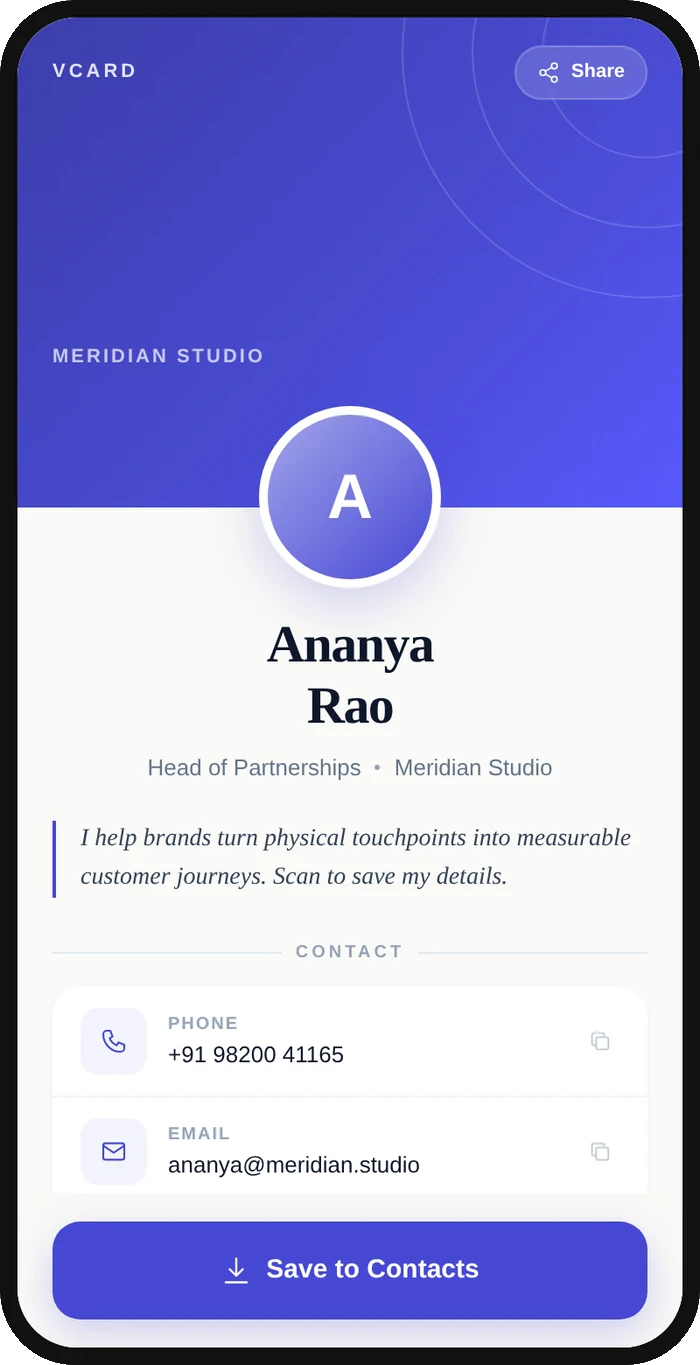
A real Qravio scan page, shown with demo content. Every part of it is editable after the code is printed.
Make your LinkedIn Profile QR code
Build it free below, then create an account to make it dynamic — edit it anytime and track scans.
Set up your LinkedIn Profile QR code
- 1Sign up free at qravio.app and create a new QR code, choosing the URL or website type.
- 2Paste your LinkedIn profile link, such as linkedin.com/in/yourname or your custom vanity URL.
- 3Customize the code with your accent color and an optional logo, then add a short call-to-action like 'Connect on LinkedIn'.
- 4Download the QR as a high-resolution PNG or SVG for print and slides.
- 5Place it on your conference badge, resume footer, business card, pitch deck or email signature and start tracking scans.
Why use a Qravio QR code for linkedin profile
Skip the awkward handle-spelling at events
Instead of repeating 'that's linkedin.com/in/ slash my name, all one word' over a noisy conference floor, you let people scan once and land on your profile to Connect on the spot.
Re-point it without reprinting
Changed roles, updated your vanity URL, or want to route scanners to a featured post or newsletter instead? Edit the destination in Qravio and every printed badge, card and slide keeps working.
See which events actually grew your network
Real-time scan analytics show how many people scanned, when, and from where, so you can tell whether the trade show, the talk, or your email signature drove the most profile visits.
Free, no watermark, ready for print
Qravio's dynamic tier is genuinely free with no watermark stamped across your code, so it looks clean on a printed resume, badge or pitch deck.
Pro tip
Pair the QR with one specific call-to-action that matches the moment, like 'Scan to connect after the talk' on your closing slide, and check Qravio's scan analytics afterward to see exactly how many attendees followed through.
LinkedIn Profile QR code FAQ
How do I get the right LinkedIn URL for my QR code?
Open your LinkedIn profile, copy the address from the browser (or set a clean vanity URL under Edit public profile & URL), and paste that full link into Qravio. The cleaner the vanity URL, the more professional your code's destination looks.
Will the QR code break if I change jobs or update my profile URL?
No. A dynamic Qravio code points to a short link you control, so you can swap the destination to a new profile or vanity URL anytime and every already-printed code keeps sending scanners to the right place.
Can people connect with me directly after scanning?
Yes. Scanning opens your live LinkedIn profile in their browser or app, where they can tap Connect or Follow immediately. Add a 'Connect on LinkedIn' call-to-action near the code so the next step is obvious.
Where should professionals put a LinkedIn QR code?
Common spots are conference badges and lanyards, the footer of a printed resume or CV, business cards, the final slide of a pitch or presentation deck, your email signature, and event booth signage.
Create your LinkedIn Profile QR code
Free to start. No watermark. Editable and trackable in under a minute.