

Key takeaways
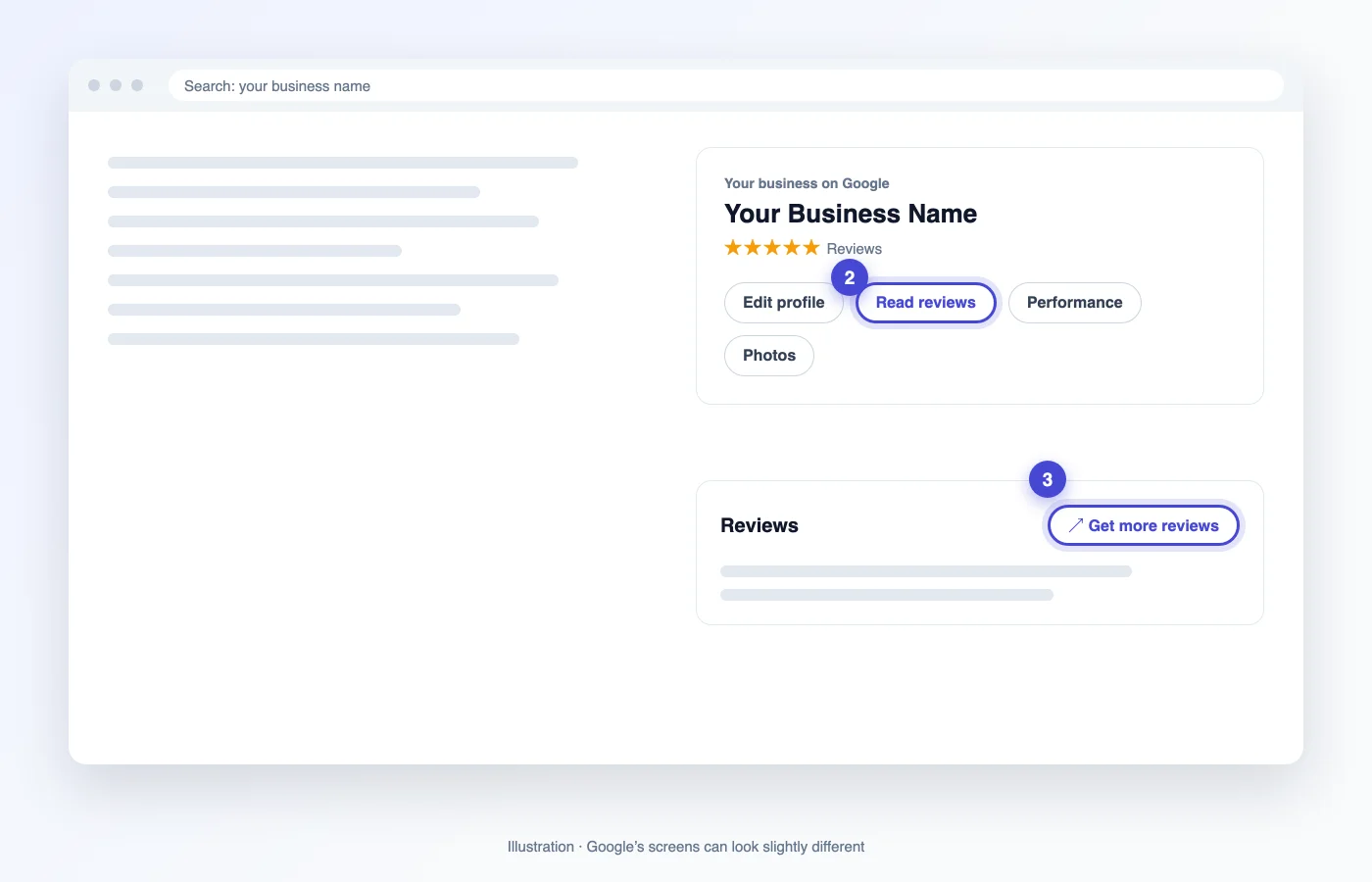
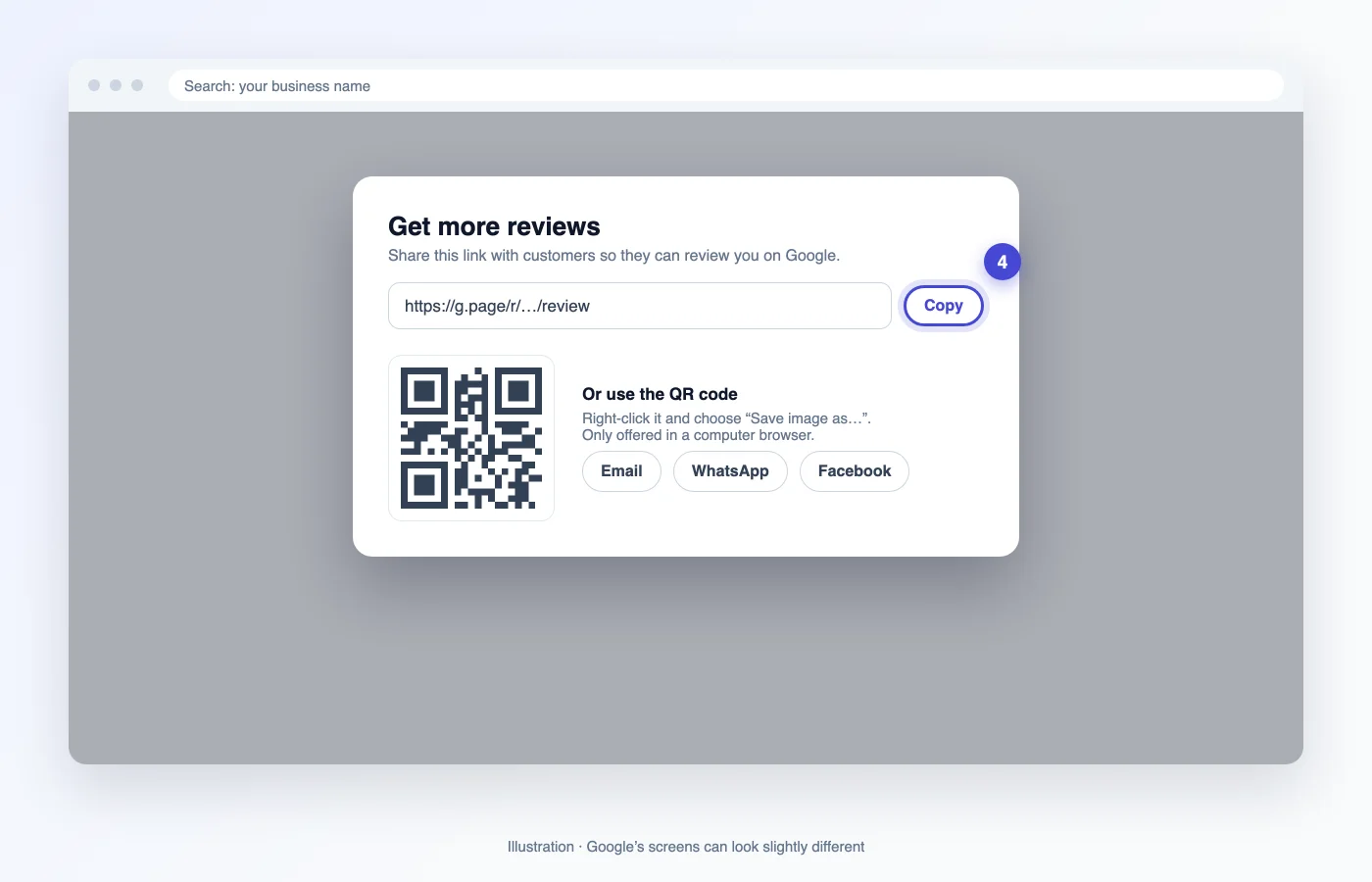
- Google’s path is Business Profile → Read reviews → Get more reviews → Copy.
- Google only offers its review QR code in a computer browser, not on phones.
- Customers must be signed in to a Google Account to post a review.
- Test the code on a phone before printing: the right business, and the star box opening.
- Never offer a discount or gift in exchange for a review. Google prohibits it.
Got your link? Make the code now
Paste it, pick a style, download free. No account needed.
Step 1: Find your Google review link
Your review link comes from your Google Business Profile, and you need to be signed in to the Google Account that manages it. Google documents the steps in its help article “Create a Google link or QR code to request reviews”.
Do this on a computer. Google says its reviews QR code can only be generated in a computer browser, not on mobile devices, and the share options are easiest to find there too.
- 1Go to your Business Profile. Searching your business name on Google while signed in shows the management panel.
- 2Select Read reviews.
- 3Select Get more reviews (the share icon).
- 4Select Copy to copy the link. Google also shows its own QR code here; you can right-click it and choose Save image as… if a plain code is all you need.
If you can’t find “Get more reviews”
Some older guides call this button “Ask for reviews”; Google’s current name for it is Get more reviews. If you are on a phone, switch to a computer first.
If you only have your Place ID (it starts with ChIJ, from Google’s Place ID finder), you can paste that into the Qravio generator instead. It turns it into a review link for you.
Step 2: Create the QR code in Qravio
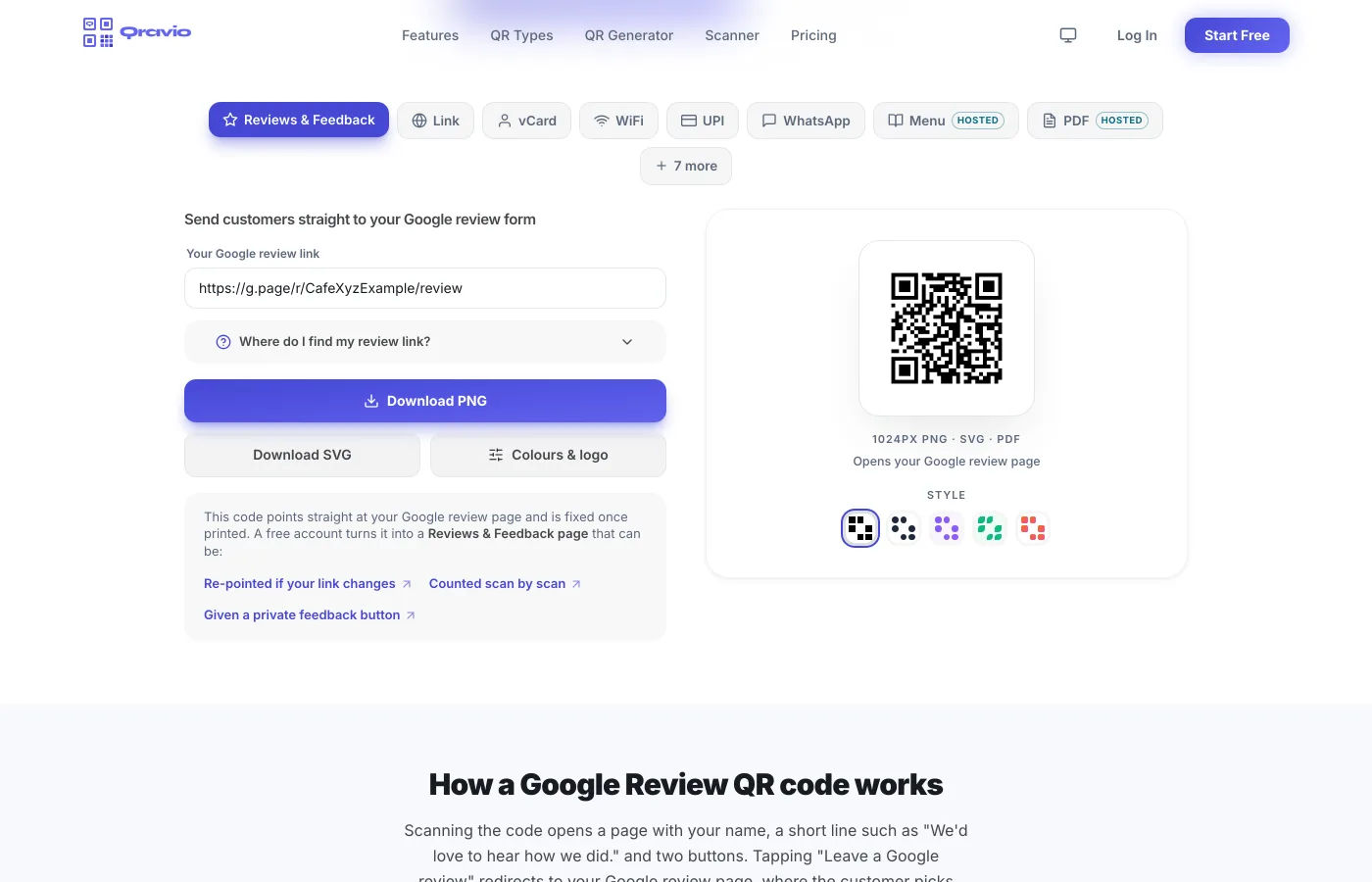
Open the Google review QR code generator and paste your link into the “Your Google review link” field. The code appears beside it as you type. If what you pasted is not a Google link, the field says so and the download stays locked, so you cannot print a code for the wrong address by accident.
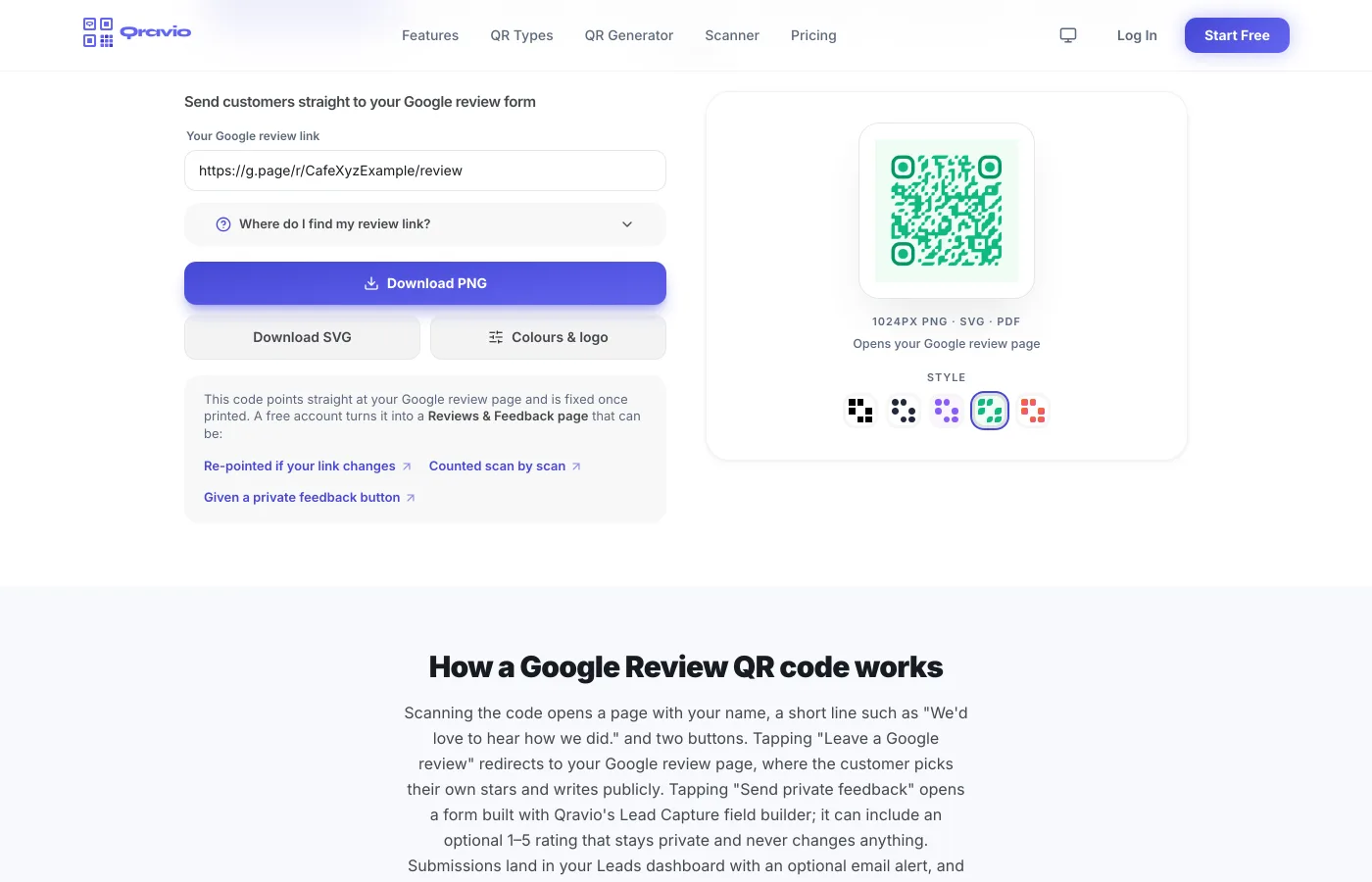
Pick one of the five styles under the code, then download a PNG for screens or an SVG for print. Neither needs an account.
Step 3: Choose static or dynamic before you print
The free download is a static code: your Google link is written into the pattern itself. It works forever and costs nothing, but if your link ever changes, every printed copy has to be replaced.
A free Qravio account gives you a different kind of code: one that opens a Reviews & Feedback page. Once that code is printed, you can change what is behind it without reprinting, see how many people scan it, and give customers a second button to send you private feedback. Every scanner sees the same Google review button, whatever they think of their visit. A static code you have already printed cannot be converted; the dynamic one is a new code to print.
| Static (free download) | Reviews & Feedback page (free account) | |
|---|---|---|
| When scanned | Opens your Google review form | Opens a page with a Google review button and a private feedback button |
| Change the link after printing | No, reprint | Yes, from your dashboard |
| Scan counts | No | Yes |
| Every customer can reach Google | Yes | Yes, the same button for everyone |
Step 4: Test it on a phone
Scan the code from your screen with a phone camera before printing anything. Two things have to be right: the business, and the screen it opens.
- 1Check the business name and address at the top. If you run several locations, make sure it is this one.
- 2Check that the star rating box opens, not just your listing on Maps. If it opens the listing, recopy the link from Get more reviews.
- 3Try it signed out of Google too. Google asks the customer to sign in before they can post, which is expected.
- 4Scan with both an iPhone and an Android phone if you can.
Got your link? Make the code now
Paste it, pick a style, download free. No account needed.
Step 5: Print it and put it where people finish
Download the SVG for anything printed. Keep the code at least 2.5 cm (1 inch) wide for something held in the hand, and scale up for distance: about 1 cm of code for every 10 cm between the code and the customer, so a sign read from 2 metres away needs a code around 20 cm wide. Leave a blank margin around it and keep dark modules on a light background.
Put it where the visit ends and people have a free hand: the counter, the receipt, the table tent, the invoice, the takeaway bag. Add a short line such as “Scan to review us on Google” so people know what it does.
Google’s rules for the wording matter. Asking for reviews is fine. Offering a discount, a free item or any other reward in return is not, and neither is asking only happy customers.
Troubleshooting
Most problems come from the link rather than the code. Rescanning from your screen after each fix is the quickest check.
| Problem | What to do |
|---|---|
| It opens Maps, not the review box | Copy the link again from Read reviews → Get more reviews, not from the address bar. |
| It opens the wrong location | Each location has its own link. Open that location’s profile and copy from there. |
| Customers are asked to sign in | Expected. Google requires a Google Account to post a review; it can use a non-Gmail address. |
| There is no Get more reviews on my phone | Use a computer browser. Google only offers the reviews QR code there. |
| My link changed after printing | A static code has to be reprinted. A Reviews & Feedback page can be re-pointed from your dashboard. |
| The code will not scan | Print it larger, raise the contrast, keep the blank margin, and avoid glossy glare. |
Frequently asked questions
Do customers need a Google account to leave a review?
Yes. Google says customers must be signed in to a Google Account to leave a review. They can create one with a non-Gmail email address.
Can I offer a discount for leaving a review?
No. Google treats rewards for reviews, such as discounts or free items, as fake engagement and prohibits them. Ask every customer the same way and offer nothing in return.
Should my Google review QR code be static or dynamic?
Static is fine if your link will not change and you do not need numbers. Choose a dynamic Reviews & Feedback page if you want to edit it after printing, count scans, or give customers a private feedback option alongside the Google button.
Can I use one QR code for several locations?
Not for direct reviews. Each location has its own review link, so print a separate code per location so reviews land on the right profile.
Why can’t I find the review QR code in the Google Maps app?
Google currently only generates the reviews QR code in a computer browser. Copy the link on a computer, or make your own code from the link in a generator.
Keep reading
Related QR codes